Agent Trigger
An agent trigger automatically invokes an agent to run a task when a device meets a specific event condition — for example, notifying the user, controlling the device, or automating across systems. You bind a trigger to a device event; the agent then responds in its configured voice whenever that event fires.
Typical scenarios
- Power management: Alert the user when the device battery is critically low to reinforce charging awareness.
- Environmental monitoring: Notify the user to adjust the air conditioner or dehumidifier based on real-time temperature and humidity.
- Anomaly alerts: Inform the user immediately of device failures and operational exceptions.
How it differs from push notifications
- Flexible rules: You configure events with granular data point (DP) condition matching.
- Simplified setup: One-click binding to an existing event removes redundant configuration.
- Smart response: Prompt templates generate the AI dialogue automatically.
- Natural experience: Role-aware interactions deliver humanized, personalized expression.
Prerequisites
- Device: Develop the device firmware with Wukong SDK v3.12.14 or later.
- Platform configuration:
- The agent has triggers configured, and the product's event rules are enabled.
- The product is linked to an agent. For more information, see AI Capabilities Development.
Process overview
- Create device rule events: Configure device events from DP conditions, such as low-battery, excessive-noise, and high-temperature rules.
- Configure agent triggers: Link a trigger to an existing event and set its task execution logic, such as sending a prompt.
- When the device meets the trigger conditions at runtime, the trigger fires and the user receives a smart notification or action result.
Create device rule events
Configure device events from the device PID and DP conditions.
-
Go to the Tuya Developer Platform. In the left navigation, choose AI Agent > Agent Configuration > Device Event Management.
-
Click Create in the top-right corner. The device event trigger type is currently supported.
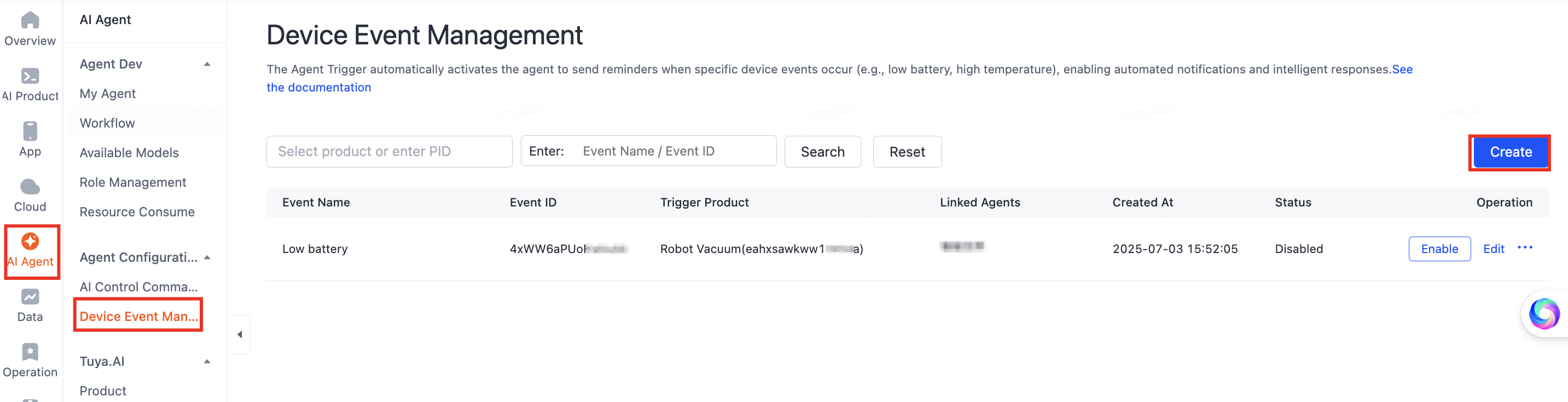
Create a device event on the platform -
Enter the device event name and select the target product's PID. After you select the PID, set the trigger conditions from that PID's DPs. The rule applies only to devices under the selected PID.
-
Define the trigger conditions. Select Generic type trigger condition or Data point (DP) trigger condition, then add the DP condition rules.
For example, set a low-battery condition for an AI doll:
dp2 (Battery) < 20anddp3 (Charge Status) = none.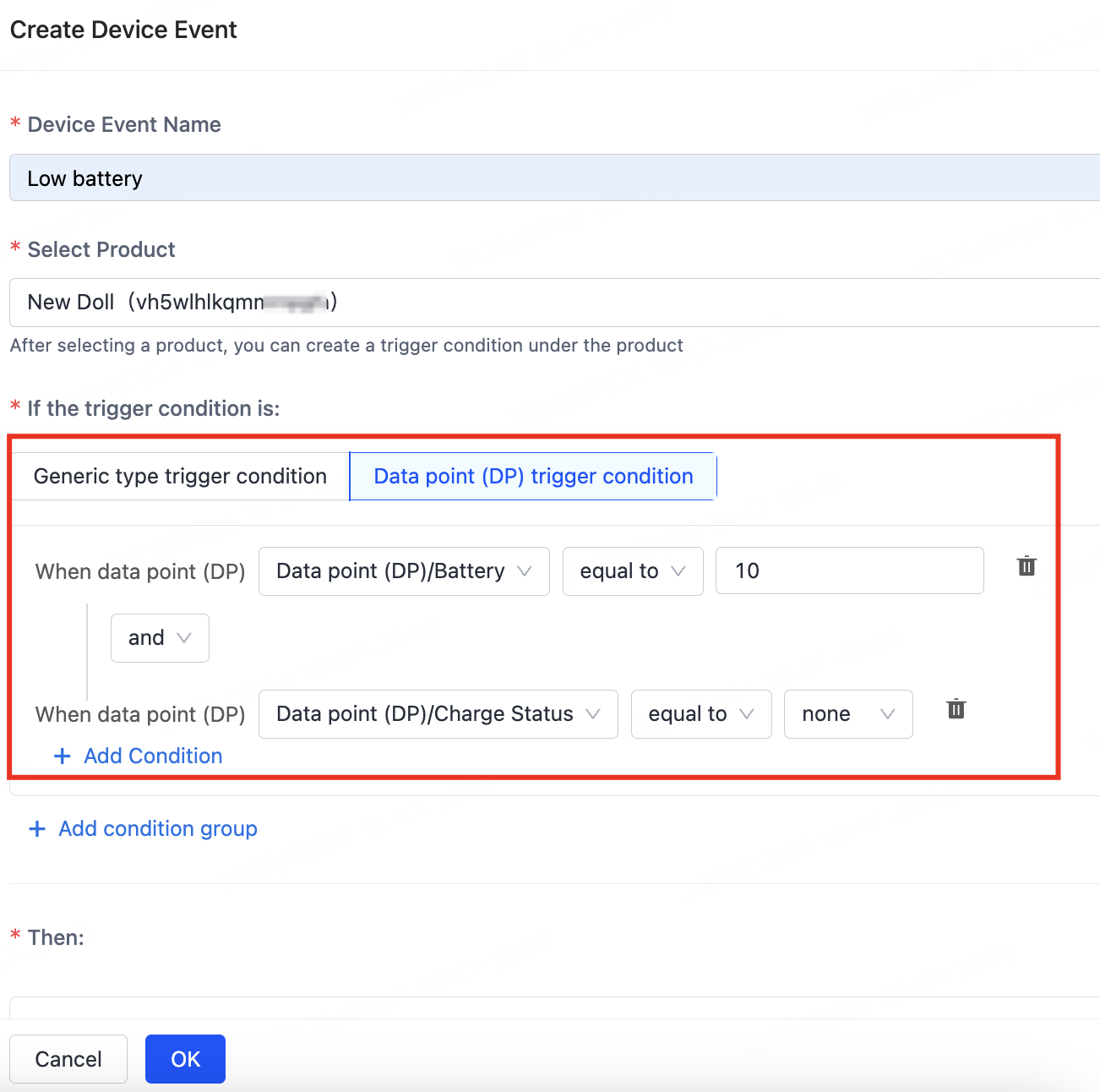
DP trigger conditions for a low-battery rule -
(Optional) Set a trigger period. The Trigger Mode can be Level Triggering or Edge Triggering. For example, restrict the event to a specific window (such as
08:00 - 23:00) to avoid disturbing the user.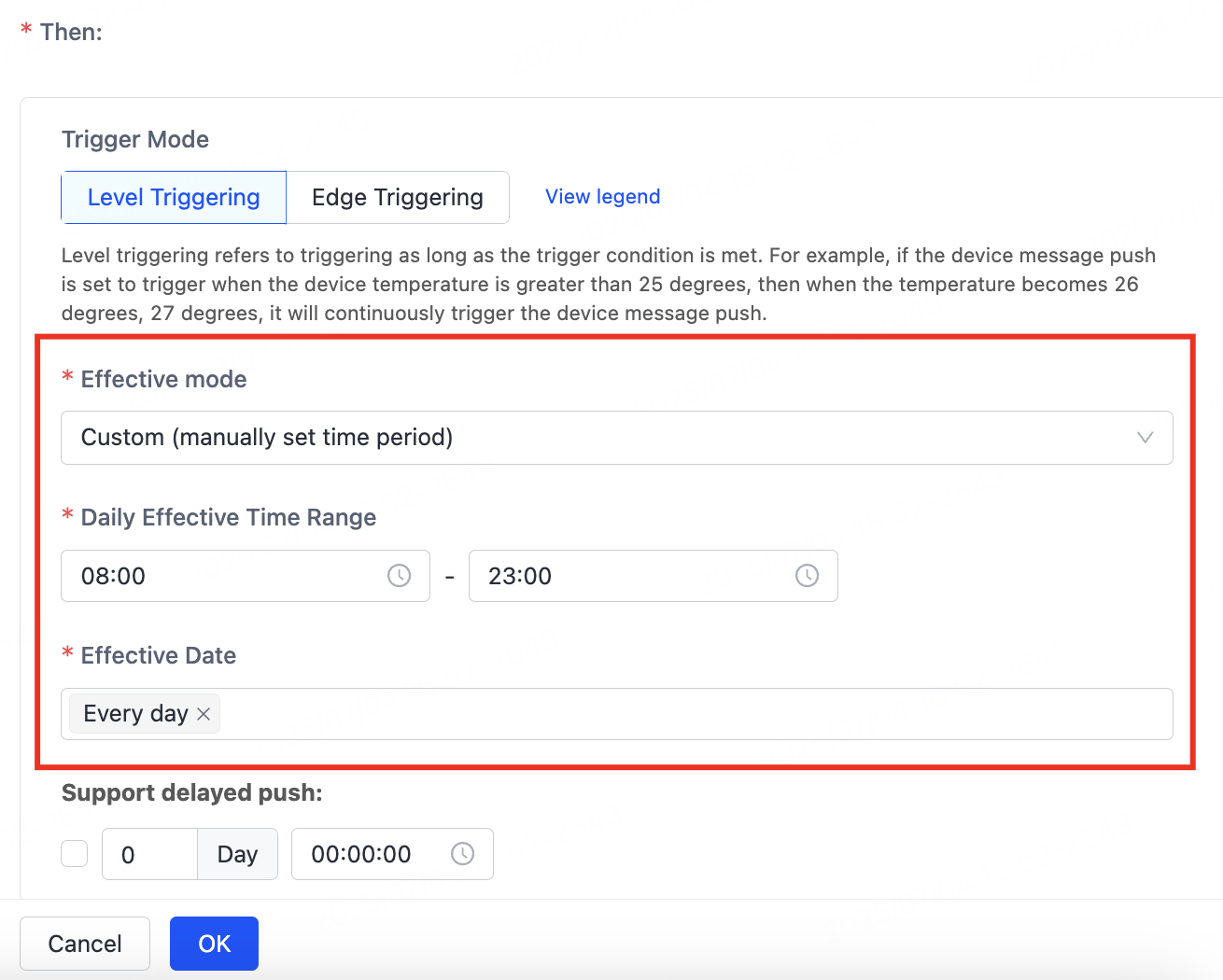
Trigger mode and time period settings -
Save and enable the event.
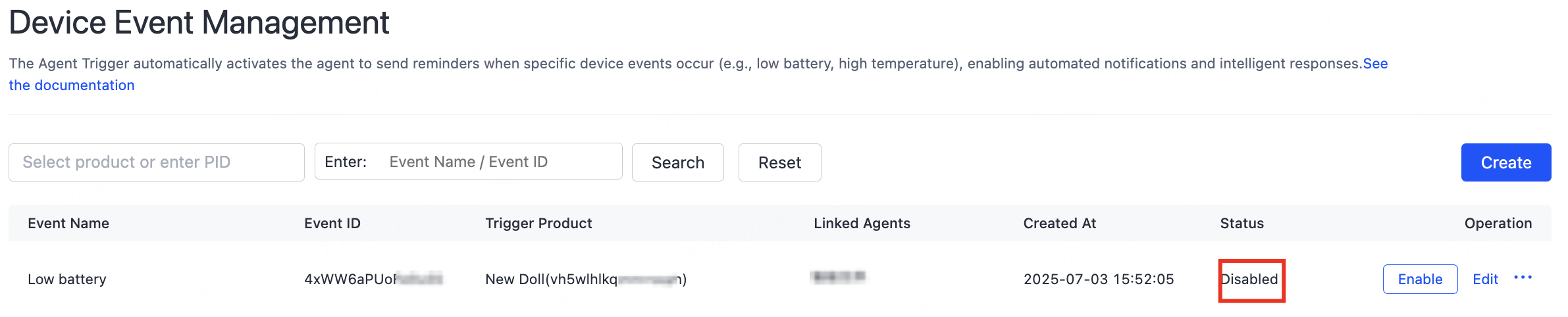
Saved event in the disabled state noteA saved event defaults to Disabled. Enable it manually and link it to a trigger so it can fire at runtime. Once enabled, the event appears as a selectable option in the trigger configuration.
Configure the agent trigger
-
Go to My Agent, click Develop in the Operation column, then find Trigger under 01 Model Configuration > Skills Configuration. Click + to configure the trigger.
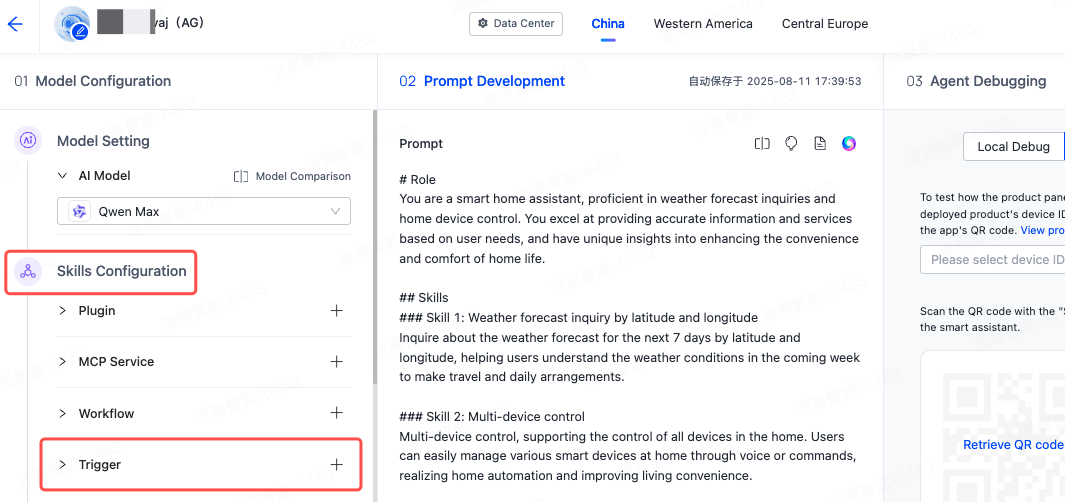
Trigger entry under Skills Configuration -
Add a trigger.
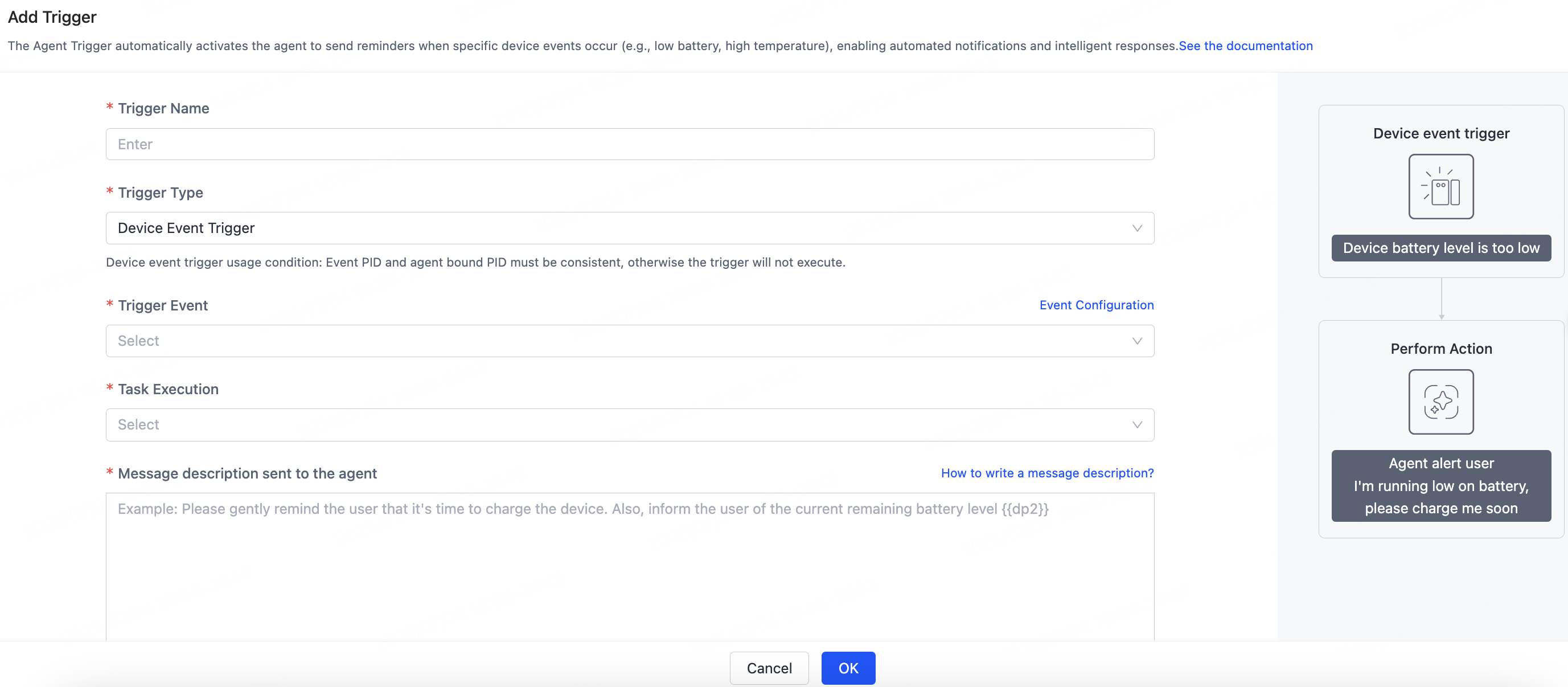
Add trigger dialog - Trigger Name: Enter a name for the trigger.
- Trigger Type: Select Device Event Trigger.
-
Select the Trigger Event — a device event from your account, such as Low Battery.
- If no events are available, click Event Configuration on the right to create a rule.
- The event is disabled by default. Enable it before triggering.
-
Define the Task Execution logic. The default task is Agent Push Message.
Only push messages are supported today; plugin and workflow tasks are not yet available.
-
Edit the prompt sent as content to the agent.
- Specify the required response format and key elements for your use case.
- Insert dynamic variables, such as
{{sys.dp2}}for the current battery value. - Keep the prompt concise; combine it with dynamic variables to personalize the experience.
- Customize the tone and expression style from the device properties and usage context.
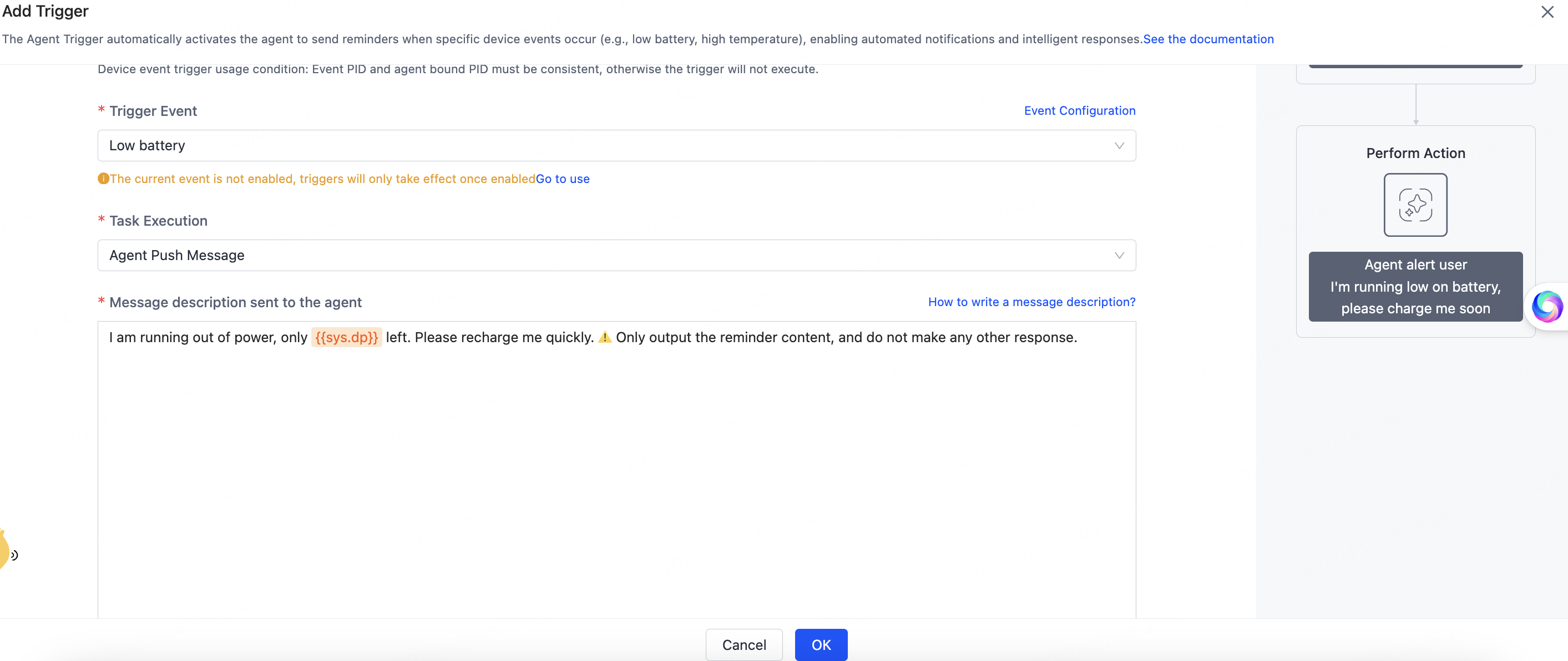
Prompt editor for the trigger task For more guidance, see How to Write Prompts.
Trigger scenario Sample prompt Prompt template Low battery alert I'm running out of power, please charge me. Your current battery level is {{dp2}}%. Please remind me (the user) in one sentence to charge your battery. No other irrelevant replies are allowed.Overtemperature alert It is too hot in the room. Can you turn on the air conditioner? The current room temperature is {{dp4}}°C. Please say something to remind the owner to cool down the room. No other irrelevant replies are allowed.Poor air quality The air is so bad. Do you want to open a window? The current air quality is {{dp5}}. Please say something to remind the owner of ventilation. No other irrelevant replies are allowed.Device offline notification Device connection error. Please check your network. You are offline. Please generate a concise prompt to remind users to check the network. No other irrelevant replies are allowed. -
Click OK.
-
Test the execution result.
-
Click Execute for the event.
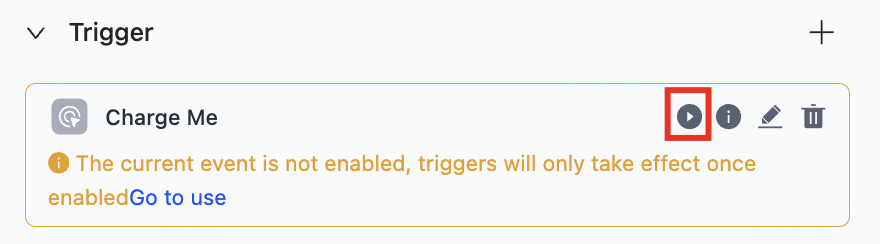
Execute button on the event -
In the Simulate Trigger Test dialog, enter the virtual device ID and use the virtual device panel to view the response. You can also click Execute to view the AI's reply.
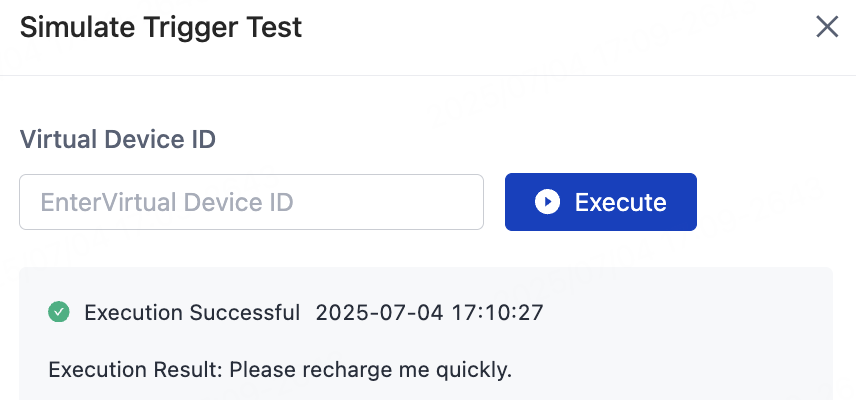
Simulate Trigger Test dialog noteOnly virtual device testing is supported today; real device testing is not yet available.
-
Coming soon
The following are planned:
- Execute workflows.
- Run tasks through plugins and other methods.
See also
- How to Write Prompts — sample prompts and variable reference for trigger messages.
- MCP Management — extend the agent with external tools and services.