Variables Management
Variables store user characteristics such as language preferences and habits. Through variable management, an agent remembers user information dynamically and generates personalized responses.
- Core mechanism — variables store data as
key-valuepairs. - Assignment logic — the large language model analyzes the semantics of user input, matches the relevant variable, and assigns its value dynamically.
- Application scenario — declare a variable's use in the prompt. For example, change the response language based on the user's language preference.
Variable types
You can use system variables and user variables to meet different business needs. They differ as follows:
| Type | Control | Data source | Read/write |
|---|---|---|---|
| System preset variables | |||
| • App user variables | Preset by the platform | User behavior / device environment | System write only |
| • Memory variables | Preset by the platform | Long-term user interaction data | System write only |
| • Role variables | Preset by the platform | Panel settings | System write only |
| Custom variables | Defined by developers | Provided by the user or generated in a session | Read/write on all channels |
App user variables
Store an app user's static information tied to their smart devices, to improve the agent's service in home scenarios.
-
Typical scenarios
- Weather report — get local real-time weather from the home latitude and home longitude variables.
- Device control — locate devices and adjust their attributes from variables such as room information, home device category, and device AI command attributes. For example, adjust the bedroom light brightness.
-
Available variables
Variable name Description Default value Supported channels Remarks sys.categoriesHome device category Generated by the system Tuya, SmartLife, and OEM App Read only sys.homeLatitudeHome latitude coordinate Generated by the system Tuya, SmartLife, and OEM App Read only sys.roomsRooms in a home Generated by the system Tuya, SmartLife, and OEM App Read only sys.currentTimeCurrent time in the home's time zone Generated by the system Tuya, SmartLife, and OEM App Read only sys.homeLongitudeHome longitude coordinate Generated by the system Tuya, SmartLife, and OEM App Read only sys.deviceNamesList of device names Generated by the system Tuya, SmartLife, and OEM App Read only sys.attributesAI command attributes for home devices Generated by the system Tuya, SmartLife, and OEM App Read only -
Rules
- How to enable — these variables are disabled by default. Enable them manually on the developer platform.
- Data permissions — the data comes only from the SmartLife app, the Tuya app, and OEM apps. The system generates it automatically and you cannot edit it by hand. For example, when a user moves and their coordinates change, a positioning request must be retriggered.
Role variables
Role variables are used only in business panel scenarios such as AI dolls and smart speakers. Users customize role attributes to make the interaction feel more real.
-
Typical scenario
- Child companion robot — the user sets a role name (such as "Little Helper Lele") through the
role_namevariable.
- Child companion robot — the user sets a role name (such as "Little Helper Lele") through the
-
Default variables
Variable name Description Supported channels Remarks sys.roleNameRole name AI toy panel Read only sys.roleIntroduceRole description AI toy panel Read only sys.roleSupplementDescSupplemental role description AI toy panel Read only -
Rules
- Enable the variables on the developer platform before you use them.
- End users can change a role variable's value. The change takes effect immediately, with no need to redeploy the agent.
For more information, see Use variables.
Memory variables
Store personalized data that needs to persist for the long term across a user's interactions with the agent. Memory variables support persistent read and write across sessions.
-
Typical scenarios
- Content matching by interest — the
sys.memoryInterestsvariable records the user's hobbies and preferences, so the system recommends relevant content and tailors responses. - Understanding habits through memory — the
sys.memoryHistoryChatSummaryvariable stores summaries of past conversations to keep context continuous and deliver more relevant responses.
- Content matching by interest — the
-
Default variables
Variable name Description Supported channels Remarks sys.memoryUserFullNameName. Records and summarizes the user's name for personalized communication. All channels Summarized each session sys.memoryInterestsHobbies and interests. Records them for personalized content recommendations. All channels Same as above sys.memoryAgeAge. Records the user's age to optimize the interaction. All channels Same as above sys.memoryBirthdayBirthday. Records it for reminders or greetings. All channels Same as above sys.memoryProfessionProfession. Records it to better understand the user's needs. All channels Same as above sys.memoryGoalsAndWishesGoals and wishes. Records them for personalized support. All channels Same as above sys.memoryPetsKeptAtHomeRecords the pets in the user's home for personalized interactions. All channels Same as above sys.memoryHistoryChatSummarySummarizes the user's past conversations to keep context continuous. All channels Same as above -
Rules
- How to enable — these variables are disabled by default. Enable them manually on the developer platform.
- Data permissions — the data is available on all of the agent's deployment channels. The system generates it automatically and you cannot edit it by hand.
Custom variables
Define variable types entirely on your own to capture temporary states or extend business needs during dynamic user–agent interactions, such as user roles or real-time emotions.
- Typical scenarios
- Emotional awareness — adjust the response tone with the
current_moodvariable, on a scale of 0 to 10. - Identity adaptation — switch the agent's response strategy with the
user_rolevariable, such as "parent" or "guest".
- Emotional awareness — adjust the response tone with the
Use precise variable names and descriptions so the agent matches user data more accurately. Examples:
| Variable name | Description | Scenario |
|---|---|---|
custom_moodLevel | The user's real-time sentiment value (0–10 scale) | When the sentiment value is ≥ 7, respond in a more positive tone. |
custom_interactionFrequency | Count of the user's interactions that day | When daily interactions reach ≥ 5, push a care reminder: "Would you like to take a break?" |
custom_preferredTopic | The hashtags the user follows most recently | With custom_preferredTopic=#cooking, prioritize recipe-related content. |
Use variables
-
Log in to the Tuya Developer Platform.
-
Choose AI Agent > Agent Dev > My Agent, then click Create Agent or Agent Management to open the agent's development page.
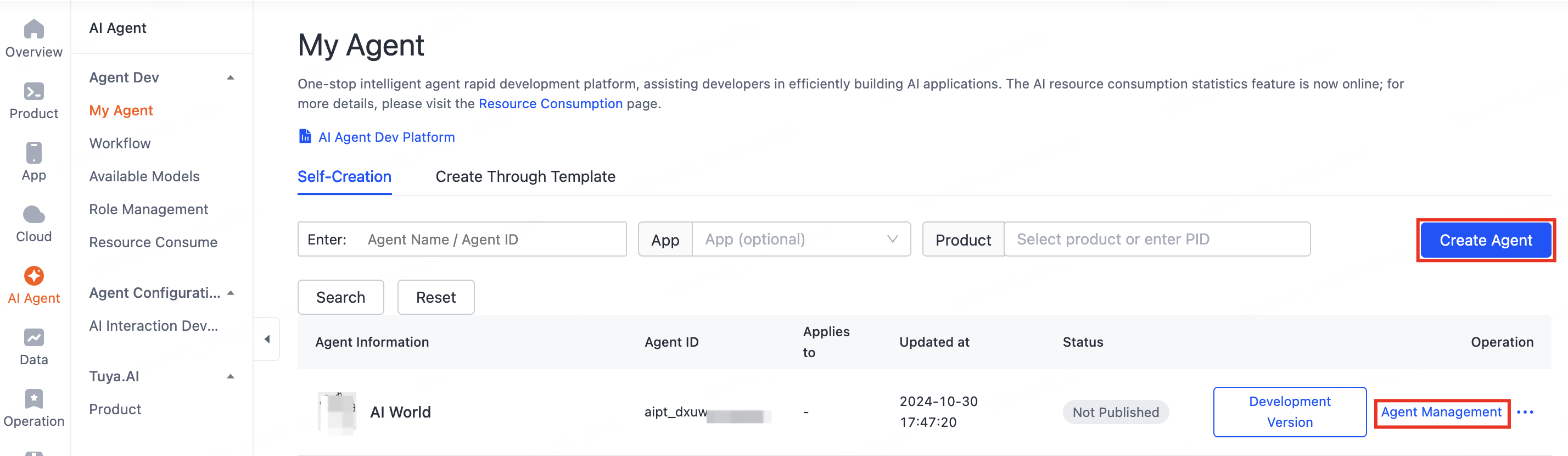
Agent development page -
Scroll to the Variables section and click + on the right.
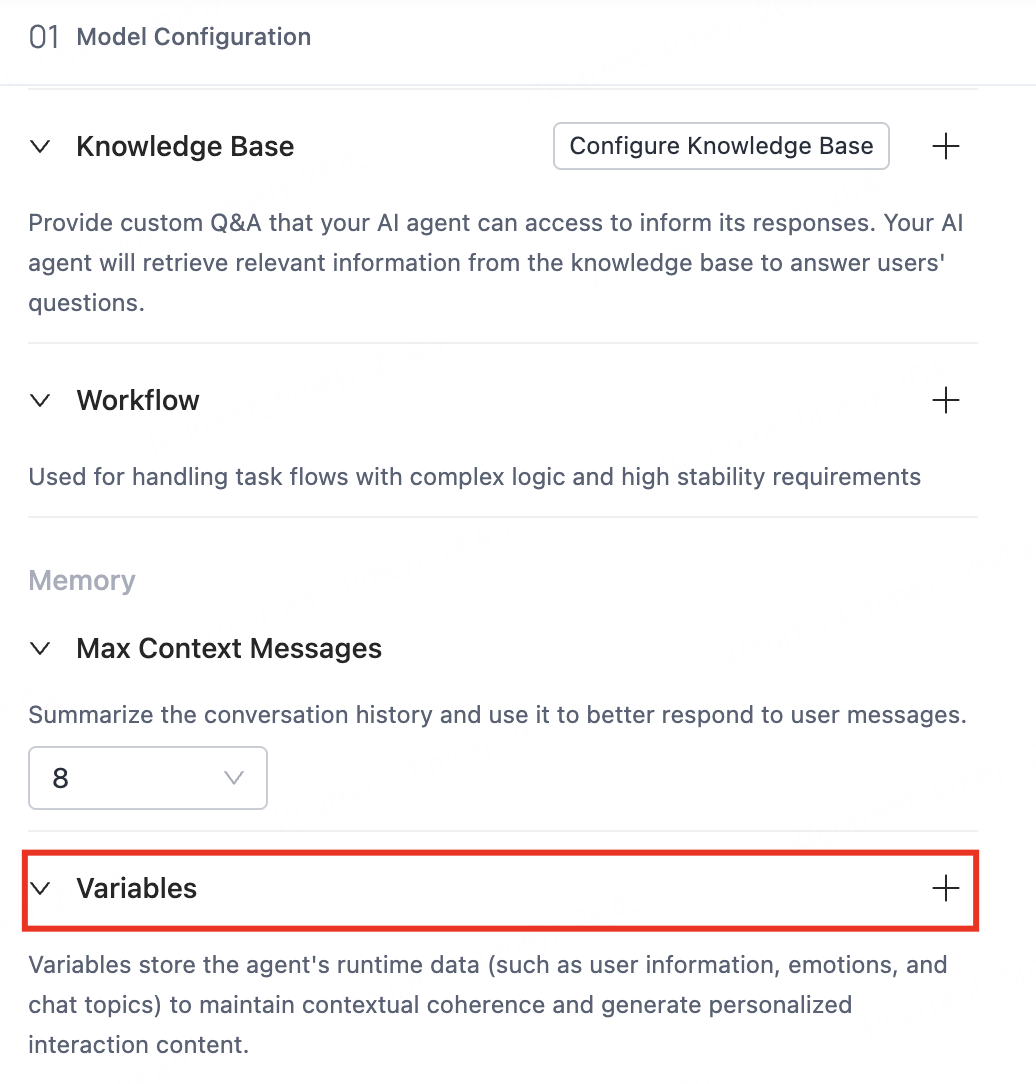
Variables section -
Manage variables. On the Edit Variables page, you can create custom variables, enable system variables, or enable role variable management.
-
Create a custom variable — in the Custom Variables section, click Add, enter the variable name, description, and default value, then click Save. Precise names and descriptions help the agent match user data more accurately.
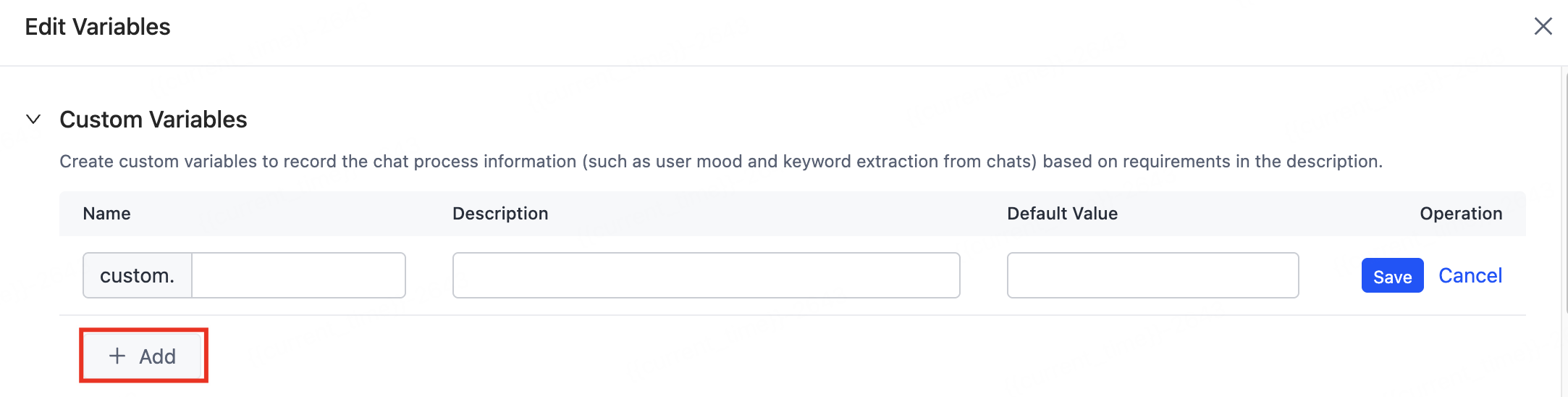
Create a custom variable -
Enable system variables — turn on the switch to enable app user variables and memory variables. Once enabled, the variable information is referenced automatically by the system prompt. To add a special note, describe the variable's use scenario in the prompt.
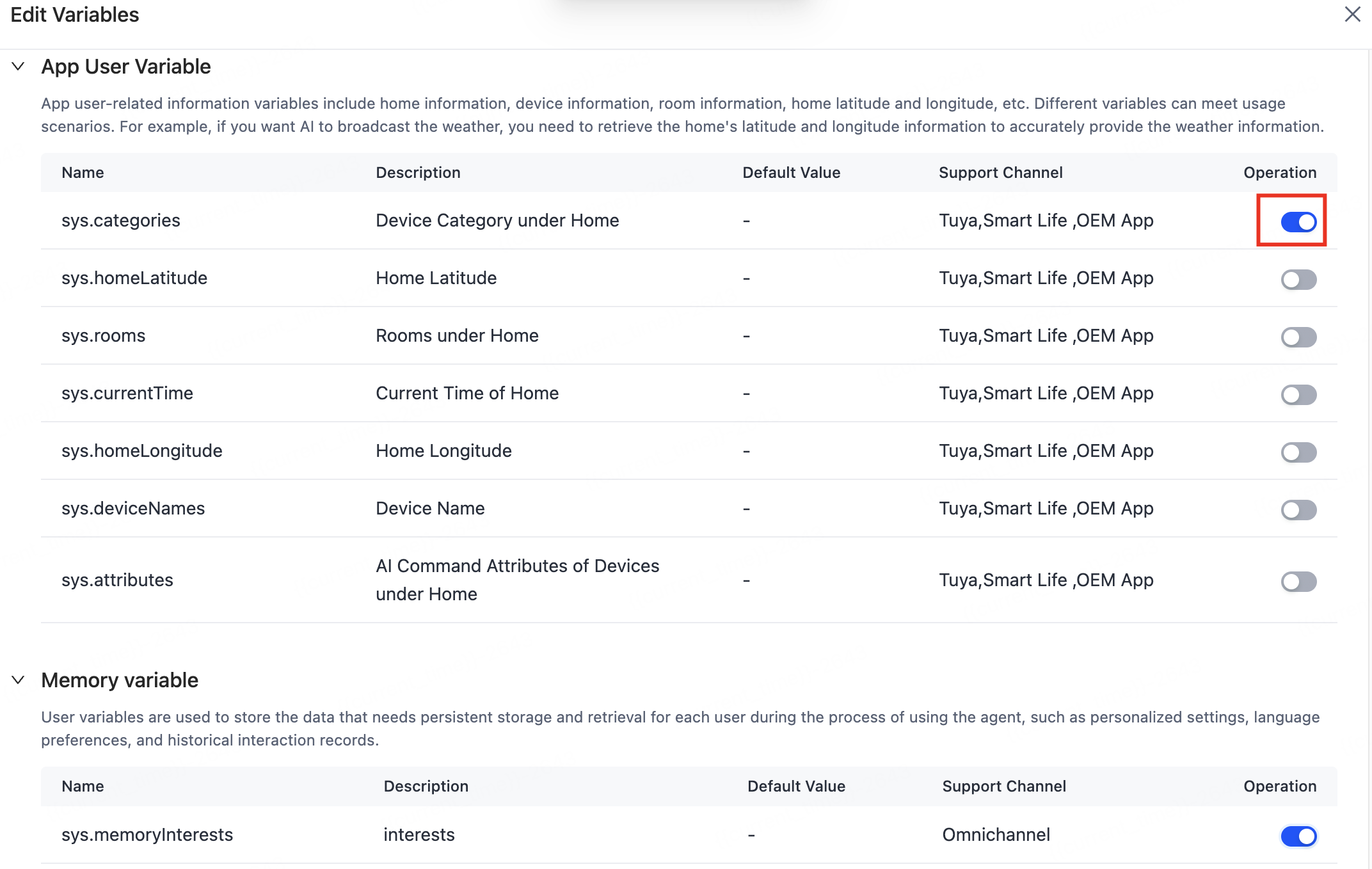
Enable system variables -
Enable role variable management — role variables are for scenarios that need predefined roles, such as AI toys and smart speakers, and must be used with the panel of the matching product category. This lets end users customize the agent's role, voice, personality, and other features.
-
Turn on the switch to enable the role variables group.
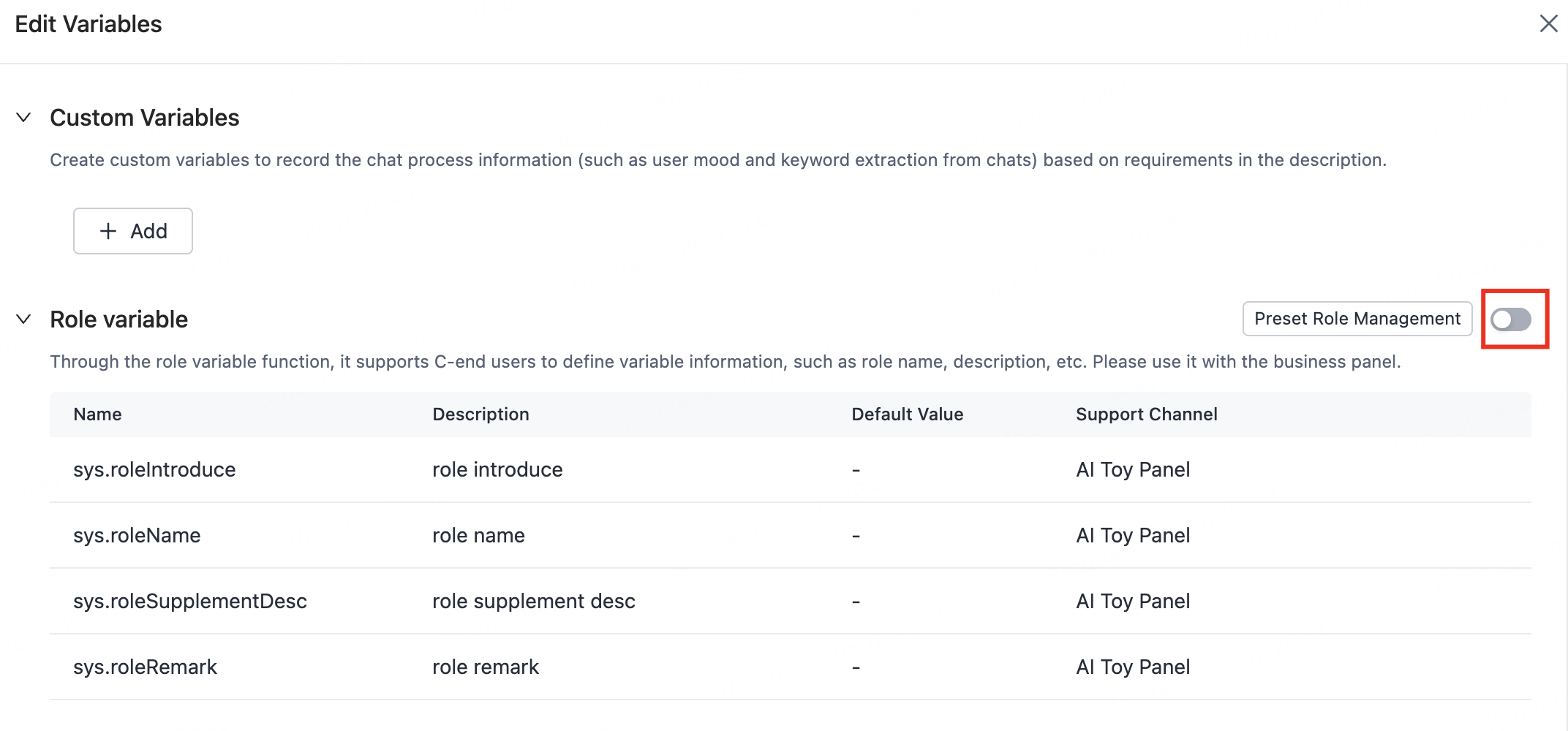
Enable role variables group -
On the Preset Role Management page, click Add Preset Role to add an official role or a custom role.
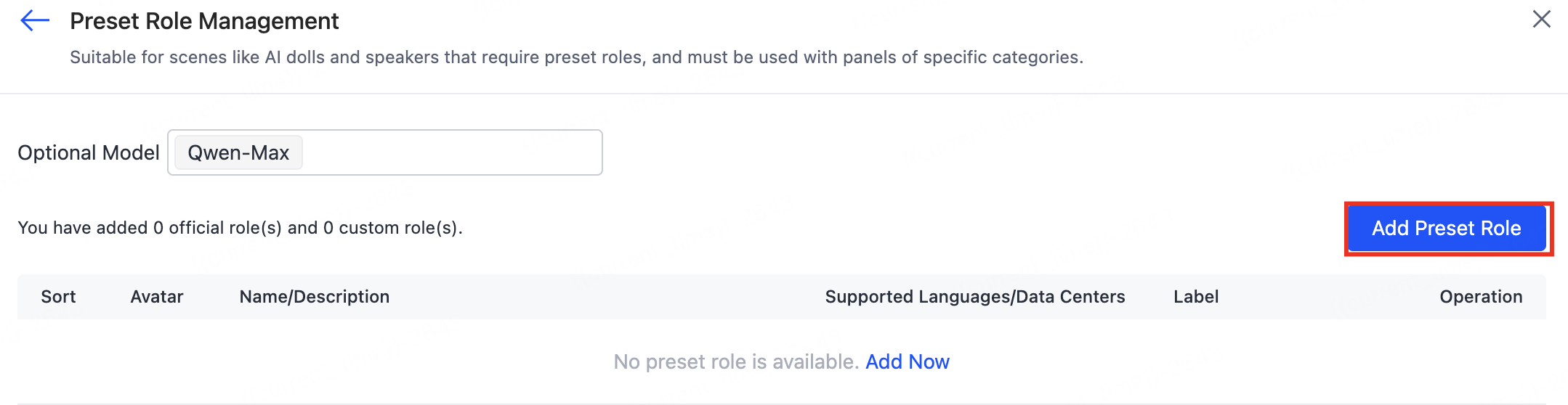
Add preset role -
After the variables are enabled and the agent development and device linkage are complete, the preset role information appears on the AI toy panel when used with that panel.
-
-
See also
- AI Agent Dev Platform — where you enable and reference variables
- Role Management — manage roles that role variables expose
- Workflow Management — reference variables inside workflow nodes