Running your_chat_bot on Raspberry Pi
This document describes how to run the your_chat_bot project from tuyaopen on a Raspberry Pi.
Prerequisites
Read the Quick Start and its sub-sections to understand:
- How to set up the TuyaOpen development environment
- How to obtain a TuyaOpen authorization code; using the header-file method is recommended
- How to perform device network configuration
Build Methods
On tuyaopen, Raspberry Pi supports two build methods:
- Cross-compilation: Build on a PC, then transfer and run on the Raspberry Pi
- Native build: Build directly on the Raspberry Pi
Note: Cross-compilation is not supported on macOS. Use Linux or build directly on the board.
External Sound Card
The Raspberry Pi does not have a built-in microphone or speaker by default, so an external USB sound card is required. The following models are recommended:
- USB Audio Module YD1076, Taobao link
- Waveshare USB Sound Card, link
You may also choose other compatible USB sound cards. Note that the microphone should support outputting raw audio data and should not include built-in noise reduction, echo cancellation, or similar processing.
Model Path Configuration
Obtaining the Wake Word Model
The KWS (Keyword Spotting) wake word model can be obtained in two ways:
Option 1: Automatic download
After selecting the Raspberry Pi platform and building successfully, the model is automatically downloaded to platform/LINUX/tuyaos_adapter/src/tkl_audio/models.
Option 2: Manual download
Use the following commands to download mdtc_chunk_300ms.mnn and tokens.txt to the ~/tuyaopen_models directory:
wget -P ~/tuyaopen_models https://github.com/tuya/TuyaOpen-ubuntu/raw/platform_ubuntu/tuyaos_adapter/src/tkl_audio/models/mdtc_chunk_300ms.mnn
wget -P ~/tuyaopen_models https://github.com/tuya/TuyaOpen-ubuntu/raw/platform_ubuntu/tuyaos_adapter/src/tkl_audio/models/tokens.txt
The default path in the code is ~/tuyaopen_models. If you need to change it, follow the steps below.
Configuring the Wake Word Model
After obtaining the model, configure the path as follows:
- Activate the tos.py environment and go to the
apps/tuya.ai/your_chat_botdirectory - Run
tos.py config choiceand select theRaspberryPi.configconfiguration - Run
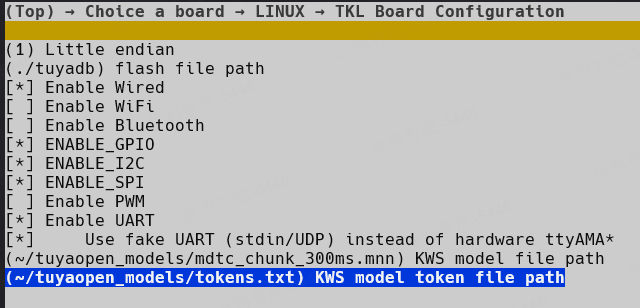
tos.py config menuand navigate:(Top) → Choice a board → LINUX → TKL Board Configuration - According to the actual location of
mdtc_chunk_300ms.mnnandtokens.txt, set the following options:KWS model file pathKWS model token file path
Note: Ensure that the model files are placed in the Raspberry Pi filesystem and that the paths are configured correctly; otherwise, the wake word feature will not work.
Configuration Example
For example, when the model files are stored in ~/tuyaopen_models, the paths can be configured as follows:
Important: The paths must be correct, or the voice wake word feature will not work.
Additional Notes
Transferring Files When Using Cross-Compilation
If you are using cross-compilation, you can use the scp command to copy the built executable from the build host to the Raspberry Pi. For example:
scp ./dist/your_chat_bot_1.0.1/your_chat_bot_QIO_1.0.1.bin username@192.168.1.xxx:~/
Command parameters:
username— Username on the board192.168.1.xxx— IP address of the board~/— Target directory on the board
Running the Executable
./your_chat_bot_QIO_1.0.1.bin
Command parameters:
your_chat_bot_QIO_1.0.1.bin— Executable file name
On the first run, you need to perform device network configuration (pairing). If pairing or network connection fails, try deleting the tuyadb folder and running the program again.
FAQ
Q: Voice wake word is not working. What should I do?
A: Check that the model file paths are correct and that the files are complete. You can use ls -lh to verify that the files exist and that their sizes are as expected.
Q: The executable cannot be run. What should I do?
A: Check that the executable has execute permission. You can run chmod +x your_chat_bot_QIO_1.0.1.bin to grant execute permission.