Raspberry Pi Provisioning Troubleshooting
This document helps troubleshoot Wi‑Fi/Bluetooth-related issues when running TuyaOpen apps on Raspberry Pi (for example, apps/tuya.ai/your_chat_bot), including: provisioning QR code not shown, Bluetooth unavailable, or Wi‑Fi/Bluetooth being disabled by the OS.
Prerequisites
Read the Quick Start and its subsections to understand:
- How to set up the TuyaOpen development environment
- How to obtain a TuyaOpen authorization code (the header-file method is recommended)
- How to perform device network provisioning
Common Symptoms
- The program cannot enter the provisioning flow, or the terminal does not print a provisioning QR code.
- Bluetooth scan/provisioning fails (BLE not working, device not discoverable).
- Wi‑Fi or Bluetooth is disabled by the OS (
rfkillshows blocked).
First Run Requires Provisioning Scan
On the first run, the app typically requires QR code provisioning (for example, scanning the QR code output in the terminal).
If provisioning or network connection fails, try clearing device data and running again:
- Stop the running program.
- Delete the
tuyadbfolder in the program's working directory:
rm -rf tuyadb
- Run the program again and re-enter the provisioning flow.
Provisioning QR Code Not Printed in Terminal
On Raspberry Pi, to print the provisioning QR code (and related content) directly to the current terminal, it is recommended to enable "fake UART (stdin/UDP)".
- Activate the
tos.pyenvironment and enter the app directory (takingyour_chat_botas an example):
cd apps/tuya.ai/your_chat_bot
- Open the configuration menu:
tos.py config menu
- Go to
Choice a board → LINUX → TKL Board Configurationand enable:
Enable UARTUse fake UART (stdin/UDP) instead of hardware ttyAMA*
Example screenshot:
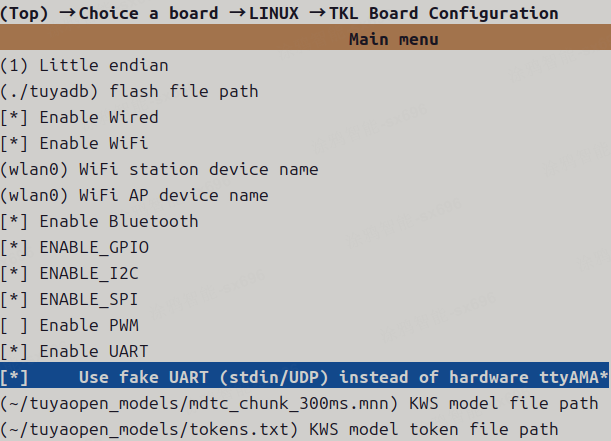
After enabling fake UART, the app usually prints the QR code to the current terminal during provisioning. Then use the Tuya Smart app to scan the QR code and provision the device.
Check Whether Wi‑Fi/Bluetooth Is Disabled by rfkill
- Check Wi‑Fi and Bluetooth status:
rfkill list
Example output:
0: hci0: Bluetooth
        Soft blocked: no
        Hard blocked: no
1: phy0: Wireless LAN
        Soft blocked: yes
        Hard blocked: no
Where:
Soft blocked: yesmeans the device is disabled in software.Hard blocked: yesmeans the device is disabled in hardware (for example, a physical switch); remove the hardware block first.
- Unblock in software:
sudo rfkill unblock all
To unblock a specific item:
sudo rfkill unblock wifi
sudo rfkill unblock bluetooth
Bluetooth Service and TuyaOpen Config Checks
Confirm TuyaOpen Bluetooth service is enabled
In tos.py config menu, verify:
configure tuyaopen  --->
  configure tuya cloud service  --->
    [*] ENABLE_BT_SERVICE: enable tuya bt iot function  --->
      [ ] ENABLE_NIMBLE: enable nimble stack instead of ble stack in board
In general, it is recommended to:
- Enable the Bluetooth service
- Keep
NIMBLEdisabled
After changing configuration, rebuild (for example, run tos.py build), otherwise the config change will not take effect.
Runtime Permissions
On Raspberry Pi, Wi‑Fi/Bluetooth/peripheral operations often require access to /dev/* or system service interfaces. It is recommended to run the generated executable with sudo, for example:
sudo ./your_chat_bot_*.elf